
Dollar Tree Schedule: How to Check Your Work Shifts Online
Dollar Tree Employee Schedule helps you check your work shifts in one place. You can view your weekly shift list for this week and next week, see any shift updates, and confirm start and end times before you go in. Everything runs through the Compass portal at compassmobile.dollartree.com — and this guide shows you exactly where to look.
How to Access Your Compass Schedule
There is only one place to check your official Dollar Tree schedule:
- Open compassmobile.dollartree.com in any browser — desktop or phone
- On your phone, use Chrome or Safari; the mobile site works just like an app
- Important: there is no official Compass app on the App Store or Google Play. Any download claiming to be the Compass app is not authorized and may put your login details at risk. See our Mobile Access Guide for the safe way to use Compass on your phone.
Need help signing in first? See our Compass Login Guide.

How to Find Your Schedule
These steps point you to the exact place where your work shifts show after login:
- Log in at compassmobile.dollartree.com
- From the dashboard menu, open Clock-In Info (shown as My Schedule in some views)
- Select This Week to view current shifts
- Switch weeks to view other dates
Tip: If it looks empty, refresh the page and check Next Week too.
If You Haven’t Been Given Any Schedule Info
Use this if you never received login details or don’t know where to start:
- Ask your Store Manager or Assistant Manager for your login details
- Confirm your WFM username / employee ID
- New hires may not appear in the shift list until account setup is completed — see our Registration Guide
Next Week’s Schedule
- Open Clock-In Info / My Schedule
- Change the week view to Next Week
- Refresh the page if the view doesn’t update
Tip: If next week isn’t posted yet, check again later in the day — managers often post schedules midweek.
Scheduled Shifts and Updates
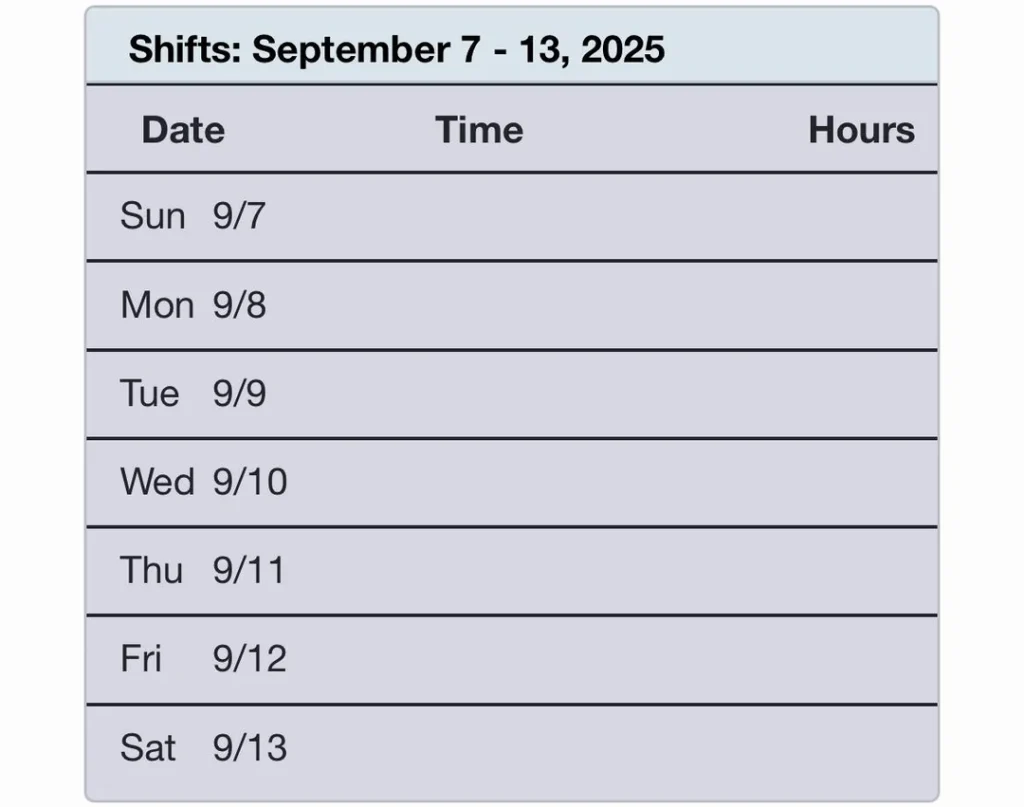
- A shift usually shows date, start time, end time, and role
- Shifts may be added, removed, or adjusted after posting
- Check your schedule at least twice a week so you don’t miss changes
Tip: Save a screenshot after the schedule is posted so you can compare later if something changes.
Changes in the Schedule
- Changes can happen due to call-outs or coverage needs
- Hours may shift due to labor limits
- Some stores adjust shift plans during the week
Tip: If a change doesn’t work for you, tell your manager quickly so coverage can be fixed.
How Much Notice Is Required When Changing a Shift?
Notice rules can differ by company policy and local area, so the timing is not always the same:
- Your store may have an internal notice rule
- Some locations have local scheduling laws
- Management can confirm what applies to your store
Tip: Keep a screenshot of the posted shift details for reference if timing becomes an issue.
Schedule Problems and Fixes
Try these quick actions when your schedule won’t load or looks wrong:
- Log out and log back in
- Refresh the page or clear your browser cache
- Try a different browser (Chrome or Edge work best)
- Switch between Wi-Fi and mobile data
Tip: If the site won’t load for you and your coworkers both, it may be a system issue — report it to your manager.
No Hours Scheduled
This means no shifts appear for the week you selected:
- The schedule may not be posted yet
- You may not be added to the correct shift group
- Hours might be limited for the store that week
- Your availability settings may be blocking shifts
Tip: Check both This Week and Next Week, then ask management if more hours will be added later.
Checking Your Schedule on Your Phone
The Compass mobile site gives you everything on the go:
- View weekly shifts and shift details (time, role, location)
- Check updates anywhere, anytime
- Works in Chrome or Safari — no download needed
Tip: Bookmark compassmobile.dollartree.com or add it to your home screen (Share → Add to Home Screen on iPhone) — it works just like an app, without the security risks of fake downloads.
Time Off and Availability Requests
- Submit a request in the system (if your account allows it)
- If you don’t see the option, your manager may need to enter it for you
- Send requests before the schedule is made
Tip: Ask for confirmation after you submit a request so it’s not missed.
Printing Your Schedule
- On desktop, open Clock-In Info / My Schedule and print the page
- On mobile, take a screenshot
- Save it as a PDF if your browser offers that option
Tip: A printed copy helps when the site is down or your phone battery is low.
Who Makes the Schedule?
- Usually the Store Manager or Assistant Manager
- Built around staffing needs and employee availability
- Adjusted when coverage changes
Tip: If you want more hours, ask which days are short-staffed and offer availability there.
Why Am I Scheduled Only One Day a Week?
- Store hours may be reduced that week
- Your availability may be too limited
- More staff than available shifts
- Training stage can affect hours in some stores
Tip: Ask to pick up open shifts, cover call-outs, or widen your availability to increase your hours.
FAQs
How do I find my schedule in Compass?
Log in at compassmobile.dollartree.com and open Clock-In Info (My Schedule) from the dashboard menu. Choose This Week or Next Week to view your shifts.
Is there a Dollar Tree Compass app to check my schedule?
No. There is no official Compass app on the App Store or Google Play. Use compassmobile.dollartree.com in your phone’s browser — it works just like an app. Avoid third-party downloads claiming to be Compass.
Why does my schedule keep changing?
Changes can happen due to coverage needs, call-outs, or labor and hour limits. Check your schedule at least twice a week to catch updates early.
The Compass site is down — what should I do?
Check your internet, clear your browser cache, or try a different browser. If coworkers have the same issue, it may be a system problem — report it to your manager.
Why do I see no hours scheduled?
The schedule may not be posted yet, you may not be assigned to the right group, or store hours may be limited that week. Check both weeks, then ask your manager.
Who makes the schedule in Compass?
Usually the Store Manager or Assistant Manager creates and updates the schedule based on coverage needs and availability.