
Dollar Tree Compass Login Portal: Schedules, Paystubs, and W 2 Access
Dollar Tree Compass is the official workforce management portal used by Dollar Tree and Family Dollar associates across the United States and Canada. Available at compassmobile.dollartree.com, the Compass portal lets store employees check their posted work schedules, view upcoming shift assignments, and stay updated on changes made by their supervisors, all without needing to ask in person. The same username and password used for clocking in and out at work are also used to sign in to Compass Mobile.
The Dollar Tree Compass portal is built mainly for scheduling and time related tasks, so it’s where you go to plan your week, confirm upcoming shifts, request shift swaps where allowed, and keep track of any updates from store management. Pay records, tax forms, and benefits enrollment are handled through separate portals, and this page points you to the right place when you need those instead.
Below, you’ll find clear step by step help for the most common Compass tasks, including how to log in to Dollar Tree Compass, reset a forgotten password, fix login problems, check your work schedule, and access paystubs and W 2 forms through the correct portals. Every section is written in plain language so you can quickly find what you need and get back to work.
MyDollarTreeCompass.com is an independent guide and is not affiliated with Dollar Tree, Inc. For the official portal, visit compassmobile.dollartree.com.
Quick Links: Paystubs Section | Work Schedule | Career Opportunities | Contact Information
What You Need to Log In
Before you log in to Dollar Tree Compass, keep these details ready to reduce errors and save time.
- Login URL: Dollar Tree Compass login page
- Employee username or ID (also called your WFM username): Provided by your employer during onboarding. If you can’t find it, check your hire paperwork or ask your store manager.
- Password: The one you set during account setup or your most recent reset. First-time users are usually given a default password by their store manager or HR.
- Stable internet connection: Wi Fi or mobile data both work fine.
- Updated browser: Chrome or Microsoft Edge are recommended. Older versions of Internet Explorer or Safari may cause loading issues.
- Access to your work email or phone: Needed if the system asks for a verification code.
- Manager or HR contact: Useful if your login details are missing, your account is locked, or you’re a new hire who hasn’t received credentials yet.
How to Log In to Dollar Tree Compass
You can access Dollar Tree Compass from both desktop and mobile devices. The login process is the same on both, but the screen layout may look slightly different depending on your device and browser.
Safety tip: Always type compassmobile.dollartree.com directly into your browser. Never enter your login details on third-party sites or links from texts and emails.
Log In on Desktop
- Open your web browser on a computer.
- Go to the official Compass Mobile login page.
- Enter your employee username or ID.
- Enter your password.
- Click the Login button.
- Once the dashboard loads, open the section you need (such as Clock-In Info for your schedule).

Log In on Mobile
- Open a supported browser like Chrome or Safari on your phone.
- Sign in to your Compass account.
- Enter your employee username or ID.
- Enter your password.
- Tap the Login button.
- Use the menu or dashboard to access your schedule and other available tools.
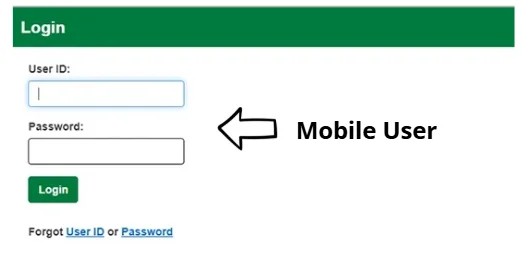
Desktop vs Mobile (Quick Comparison)
- Desktop: Better for reviewing or printing detailed information like time records or longer reports.
- Mobile: Better for quick schedule checks, shift updates, and on the go access.
Tip: Use desktop when you need to view or print something, and mobile when you just need a fast check.
Forgot Your Compass Password?
Click “Forgot Password” on the Compass login page, verify your identity, and set a new password — it takes just a few minutes. For the full walkthrough, including the default password format for first-time users and what to do if the reset fails, see our Password Reset Guide.
Common Login Problems and Quick Fixes
Try these fixes before calling support.
- Username or ID not working. Retype it carefully. Remove any extra spaces. Confirm your employee ID with your store manager if it still fails.
- Password not working. Check Caps Lock. Make sure you’re using your latest password. Click “Forgot Password” to reset it.
- Login page won’t load. Refresh the page. Check your internet. Try Chrome or Microsoft Edge. Clear your browser history if the issue continues.
- Page freezing or refreshing. Clear your cookies and cache. Close the browser fully and reopen it. Try Incognito or Private mode to test.
- Account locked. Wait 15 to 30 minutes, then try again. Ask your store manager or HR to unlock it if needed.
- No verification code received. Wait a few minutes. Check your spam folder. Update your contact details with HR if they’re outdated.
- Missing features after login. Access depends on your role, store, and position. Contact your store manager to confirm if it’s a permissions issue
Still stuck? Call mytree Associate Support at 1.855.245.7994 (Monday to Friday, 8:00 AM to 8:00 PM EST). Keep your employee ID and store number ready.
How to Check Your Work Schedule on Dollar Tree Compass
Your work schedule is updated through the Dollar Tree Compass portal. Once you sign in, you can see your upcoming shifts, hours, and any recent changes your manager has made. Here’s how to check it step by step.
- Open the Compass Mobile login page.
- Enter your employee username or ID and your password.
- Click Sign In.
- From the dashboard menu, open the Clock-In Info section.
- View your current work schedule for the week.
- Check the dates, shift start and end times, and any updates or notes shown in your account.
- Log out when you’re done, especially if you’re using a shared computer or a public device.
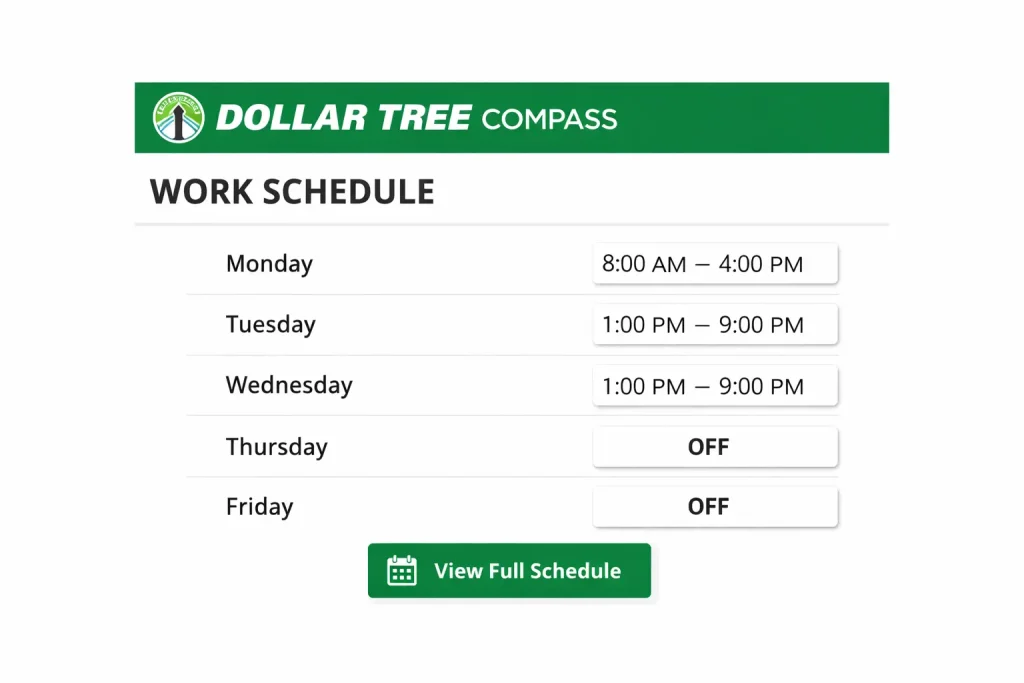
A few helpful tips:
- Check your schedule at least twice a week. Managers can adjust shifts on short notice, and it’s better to catch changes early.
- If your schedule looks blank or outdated, refresh the page or log out and back in. The portal sometimes needs a moment to load the latest version.
- Take a screenshot of your weekly schedule for easy reference, especially if you don’t always have internet access at home.
- If something looks wrong, like a missing shift or incorrect hours, talk to your store manager first before calling support. Most schedule issues are fixed quicker in store.
- For login or access problems, call the mytree Support Center at 1.855.245.7994 (Monday to Friday, 8:00 AM to 8:00 PM EST).
How to Access Paystubs and W 2 Forms
Dollar Tree uses separate portals for pay and tax documents, not Compass. Compass is mainly for schedules and time tracking. Here’s where to find each one.
To view your paystubs (Doculivery system):
- Go to https://my.doculivery.com/DollarTree
- Enter your User ID (your Associate ID) and password
- Click Login
- Open the Pay Stubs section
- Select the pay period you want to view
- Download or print the paystub
- Log out, especially on a shared device
To view your W2 form (Tax Form Management):
- Go to https://www.mytaxform.com
- Click “Find Employer Name/Code” if you don’t have the Dollar Tree code
- Enter the employer code, then your login details
- Open the W2 section
- Select the tax year you need
- Download the form (PDF will be password protected)
- Use your Social Security Number without dashes as the password to open it
- Print or save the form, then log out
Quick tip: You can also view W2 forms inside Doculivery under the W 2 tab. Either method works.
Former employees: If you no longer work at Dollar Tree, you can still get your W-2 through paperlessemployee.com/Dollartree or by contacting your old store’s manager.
Other Dollar Tree Employee Portals You Should Know About
Dollar Tree Compass is mainly for work schedules and time tracking. For everything else, like checking your paystubs, enrolling in benefits, or applying for internal job openings, Dollar Tree uses separate portals. Here’s a quick overview of where each one lives and what you can do there.
Career Opportunities (MyCareer Portal)
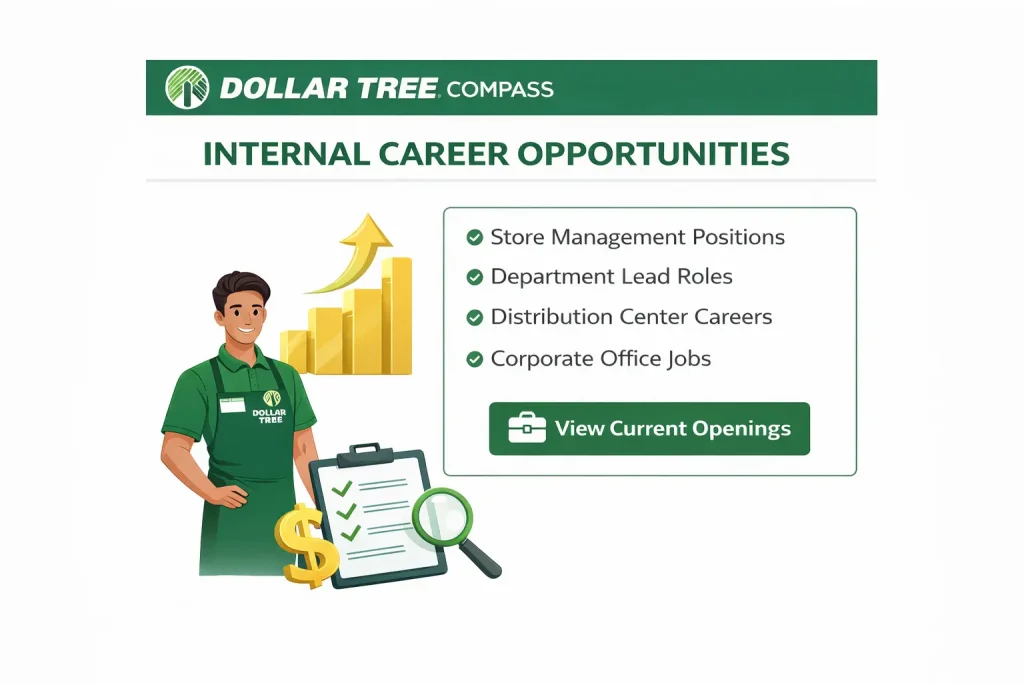
Dollar Tree employees can search and apply for internal job openings to grow within the company. Roles may be in your current department or a new team, and applying internally is one of the easiest ways to build skills, take on more responsibility, and move forward in your career.
What you can do on MyCareer:
- View current internal job openings
- Read job roles and requirements
- Apply for eligible positions
- Track your application status
- Contact HR for hiring support
Training and Learning Resources
Dollar Tree provides training tools to help associates improve job skills and meet company requirements. Access depends on your role and store, but most employees will go through onboarding training, compliance courses, and role specific learning modules.
Common training resources include:
- New hire onboarding materials
- Role specific training modules
- Compliance and policy training
- Skill development courses
- Learning guides and support resources
Employee Benefits (Mytree Portal)
The mytree portal is where Dollar Tree associates review and manage their benefits. This includes health insurance, retirement plans, time off, and other support programs. Note that mytree uses different login credentials from your Compass account, so you may need to register separately the first time you sign in.
What you can do on mytree:
- View health and medical benefit details
- Check insurance plan information
- Review retirement or savings plan options
- See paid time off and leave benefits
- Enroll in or update your benefits during open enrollment
Payroll and Pay Information (Doculivery)
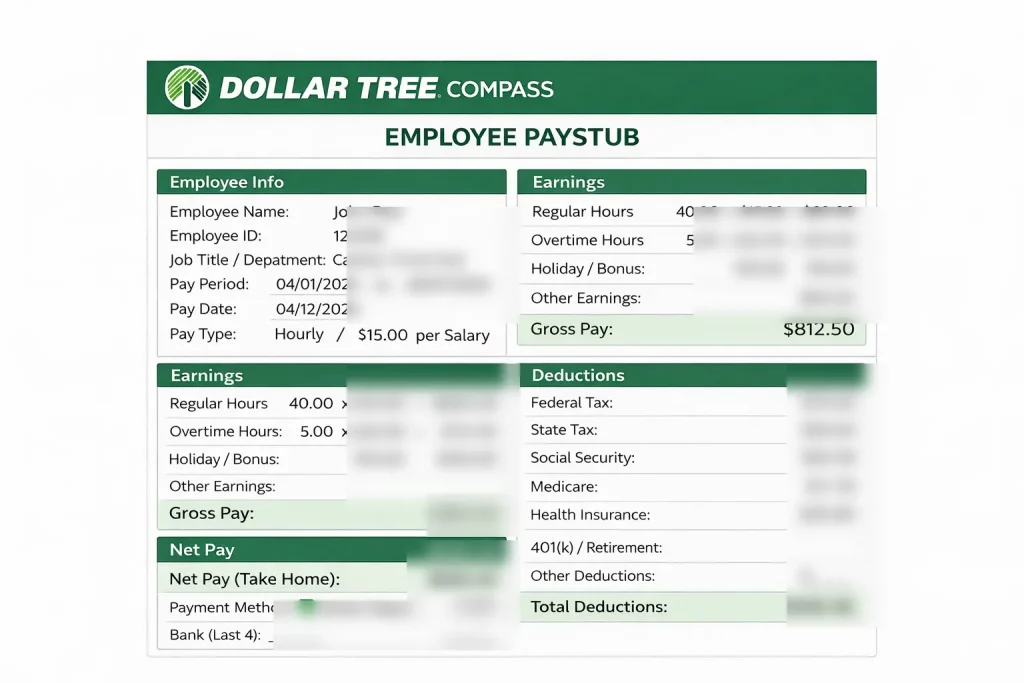
Paystubs, pay records, and tax documents are managed through Doculivery, not Compass. This is where employees view, download, and print their pay information. For full step by step help, see the How to Access Paystubs and W 2 Forms section earlier on this page.
What you can access on Doculivery:
- Current and past paystubs
- Payroll schedule and pay dates
- Tax forms (W 2 and 1095 C)
- Deductions and withholding details
- Direct deposit setup
Leave and Time Off
Some leave information may be available through the Compass Mobile portal, while detailed leave balances and company leave policies usually live in mytree. If you’re not sure where to start, talk to your store manager.
What you may be able to do:
- Check available leave balances
- Submit leave or time off requests
- Review the status of leave requests
- View holiday schedules
- Read leave policies and guidelines
If you can’t sign in to check your leave, see the Common Login Problems and Quick Fixes section above for help getting back into your account.
Dollar Tree Employee Support Contact Information
Use the right contact based on your issue. For employee portal help, start with the associate support line. For general company questions, use the corporate contact.
| Department | Phone | Hours | Best Use Case |
|---|---|---|---|
| mytree Support Center (Associate support) | 1-855-245-7994 | Monday to Friday, 8:00 AM to 8:00 PM EST | Employee portal help and associate account support |
| Dollar Tree Associate Connection | 1-800-876-8077 | Hours vary | Locked accounts, HR issues, and general associate help |
| Dollar Tree Corporate Office | 757-321-5000 | Not listed on the corporate contact page | General company inquiries |
Tip: Keep your employee ID and store number ready before calling. It speeds up the process.
FAQs About Dollar Tree Compass
What is Dollar Tree Compass?
Dollar Tree Compass is the workforce management portal for Dollar Tree and Family Dollar associates. It’s a single place where you can view your work schedule, check upcoming shifts, and track your time and attendance without having to ask a manager. Note that paystubs, tax forms, and benefits are handled through separate portals (Doculivery, mytaxform, and mytree), not Compass.
How do I log in to Dollar Tree Compass?
Visit the official login page at compassmobile.dollartree.com, enter your employee username or ID, then type your password. Click the sign in button to open your dashboard. If the page doesn’t load the first time, double check that your ID and password are typed correctly (passwords are case sensitive) and try again.
What should I do if I forgot my Dollar Tree Compass password?
Click the “Forgot Password” link on the login screen. The portal will walk you through a short identity check and then let you create a new password. Once that’s done, head back to the login page and sign in with your new credentials. For detailed steps, see our Password Reset Guide
Why is my Dollar Tree Compass login not working?
A few common reasons:
1. The employee ID or password was typed incorrectly.
2. Your browser is acting up. Try clearing the cache or switching to a different browser.
3. Your account may be temporarily locked after multiple failed attempts. Wait 15 to 30 minutes and try again.
4. The portal could be down for maintenance. In that case, try again later.
If none of these fix the problem, contact your store manager, HR, or the mytree Associate Support line at 1-855-245-7994.
Can I use Dollar Tree Compass on my phone?
Yes. You can open Compass in any mobile browser (Chrome or Safari) on your phone or tablet, which makes it easy to check your schedule and shift updates on the go. There is no official Compass app on the App Store or Google Play, so avoid downloading third-party apps that claim to be Compass — use the browser version at compassmobile.dollartree.com instead.
How do I register a new Dollar Tree Compass account?
New associates usually receive their credentials from their store manager or HR during onboarding. If you’re a new hire and haven’t received your login details yet, ask your manager first. For the full first-time setup process, see our Registration Guide
How do I check my work schedule in Dollar Tree Compass?
After logging in, open the “Clock-In Info” option from your dashboard menu. You’ll see your upcoming shifts, dates, and total hours for the week. It’s a good habit to check it at least twice a week so you stay updated on any changes managers make to your shifts.
How do I access paystubs and W-2 forms?
Paystubs and W-2 forms are not inside Compass. Paystubs are on Doculivery (my.doculivery.com/DollarTree) — log in with your Associate ID and password. W-2 forms are available at mytaxform.com or inside Doculivery’s W-2 tab. Compass is only for schedules and time tracking. For step-by-step instructions, see our Paystub & W-2 Guide
Who should I contact for Dollar Tree Compass support?
If you’re having trouble logging in or using the portal, reach out to:
1. Your store manager (often the fastest help).
2. Your HR department.
3. The mytree Associate Support line at 1-855-245-7994 (Monday to Friday, 8:00 AM to 8:00 PM EST).
They can assist with password resets, account lockouts, and other portal questions.