
Dollar Tree Compass Mobile App: Is There an Official App?
Searching for the Dollar Tree Compass mobile app? Here’s the honest answer most websites won’t tell you: Dollar Tree has not released an official Compass app on the Apple App Store or Google Play. Any download claiming to be the Compass app is not authorized by Dollar Tree — and entering your employee login into one could put your account at risk. The good news: you don’t need an app at all. The Compass portal works perfectly in your phone’s browser, and this guide shows you how to set it up so it feels exactly like an app.

Why There Is No Dollar Tree Compass Mobile App
Dollar Tree built Compass as a web-based portal, not a downloadable app. That means:
- The only official access point is compassmobile.dollartree.com — the WFM Employee Login page
- It works in any modern browser, on any phone, without installation
- The only official Dollar Tree app on Google Play and the App Store is the shopping app for customers (weekly ads, product browsing) — it has nothing to do with employee schedules or the Compass system
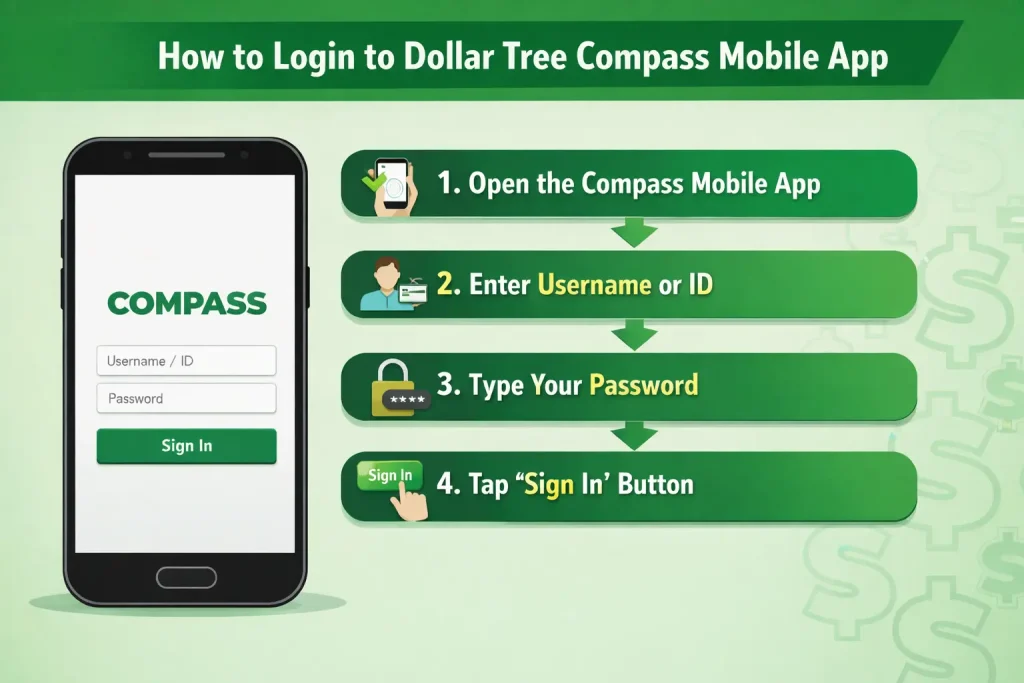
If you find an “app” elsewhere claiming to be Compass, treat it as a red flag, not a shortcut.
The Risk of Fake Compass Apps
Because so many employees search for a Compass mobile app, unofficial downloads and lookalike sites try to take advantage of that demand. The danger is real:
- A fake app can capture your WFM username and password the moment you type them
- With those details, someone could access your schedule, personal information, and linked accounts
- App stores remove such apps regularly, but new ones appear — so “found it on the store” doesn’t mean it’s official
Rule of thumb: If it isn’t compassmobile.dollartree.com in your browser, don’t enter your login there.
How to Use Dollar Tree Compass on Your Phone (The Right Way)
You get the full portal experience in your mobile browser:
- Open Chrome or Safari on your phone
- Type compassmobile.dollartree.com directly into the address bar
- Enter your WFM username / employee ID and password
- From the dashboard, open Clock-In Info to see your schedule and shifts
Need help signing in? See our Compass Login Guide. Forgot your password? Our Password Reset Guide covers the full process, including the default password for first-time users.
Make It Feel Like an App: Add Compass to Your Home Screen
This is the trick most employees don’t know. You can pin the Compass portal to your phone’s home screen — it gets its own icon and opens full-screen, just like a real app, with none of the security risks.
On iPhone (Safari):
- Open compassmobile.dollartree.com in Safari
- Tap the Share icon (the square with an arrow) at the bottom
- Scroll down and tap Add to Home Screen
- Name it “Compass” and tap Add
On Android (Chrome):
- Open compassmobile.dollartree.com in Chrome
- Tap the three-dot menu in the top corner
- Tap Add to Home screen
- Confirm — the Compass icon appears on your home screen
From now on, one tap opens your schedule. This is the closest thing to a Dollar Tree Compass mobile app that actually exists — and it’s completely safe.
Compass Not Loading on Your Phone? Quick Fixes
Since there’s no app to update or reinstall, mobile issues are almost always browser-related:
- Page won’t load: Check your internet, then try switching between Wi-Fi and mobile data
- Page freezes or keeps refreshing: Clear your browser’s cache and cookies, then reopen the browser
- Login button not responding: Try an incognito/private window, or switch browsers (Chrome ↔ Safari)
- Blank schedule: Refresh the page and check both This Week and Next Week — see our Work Schedule Guide for more schedule fixes
- Everyone at your store has the same issue: It’s likely a system outage — report it to your manager
Still locked out? Call the mytree Associate Support line at 1-855-245-7994 (Monday to Friday, 8:00 AM to 8:00 PM EST), or find every number on our Contact HR page.
Keep Your Login Safe on Mobile
- Always type the portal address yourself or use your home screen shortcut — never log in through links from texts, emails, or ads
- Log out after each session on shared devices
- Never save your password on someone else’s phone
- If you ever entered your details into a suspicious app or site, change your password immediately and tell your manager
FAQs
Is there an official Dollar Tree Compass mobile app?
No. Dollar Tree has not released a Compass app on the App Store or Google Play. Employees access Compass through the browser at compassmobile.dollartree.com. The only official Dollar Tree app is the customer shopping app, which is unrelated to employee schedules.
What if I find a Compass app in the app store?
Don’t download it. Any app claiming to be Dollar Tree Compass is unofficial and could steal your login details. Use the browser portal only.
How do I get the Dollar Tree Compass mobile app experience without an app?
Open compassmobile.dollartree.com in Safari or Chrome and use “Add to Home Screen.” You’ll get a Compass icon that opens the portal full-screen — just like an app, without the risk.
Can I check my schedule on my phone?
Yes. Log in at compassmobile.dollartree.com in your phone’s browser and open Clock-In Info from the dashboard to see your shifts, times, and updates.
The Compass site isn’t working on my phone — what should I do?
Clear your browser cache, try a different browser, or switch between Wi-Fi and mobile data. If coworkers have the same problem, it may be a system outage — tell your manager.
I entered my login into a fake app. What now?
Change your Compass password right away using the Forgot Password option, then inform your store manager or HR so they can watch for unusual account activity.